
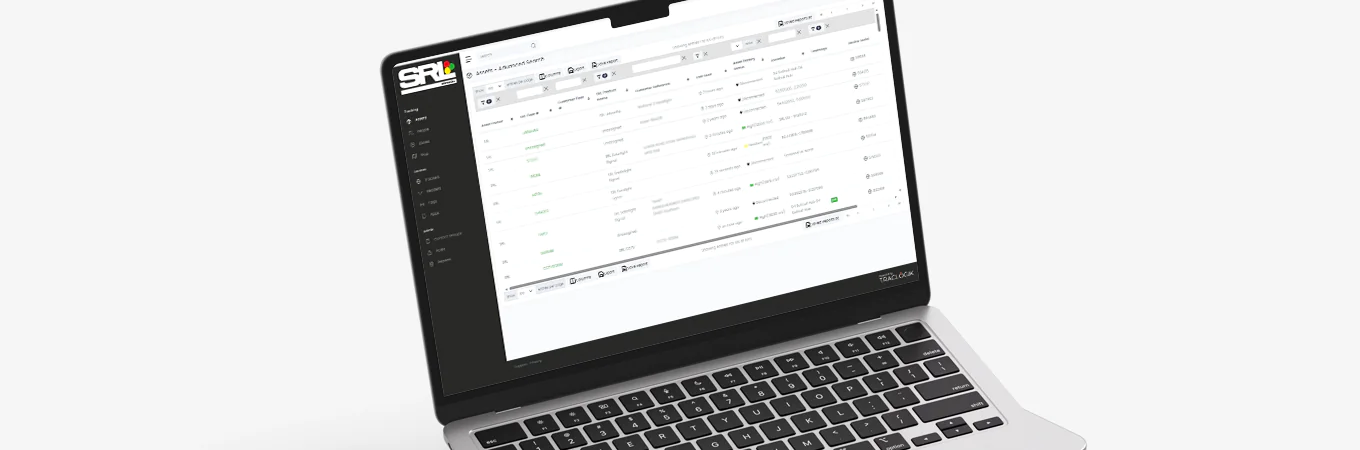
SRL Telematics customers can now receive automated reports detailing assets that require attention, based on criteria defined by their own operational requirements. From low battery levels to ‘not seen’ alerts, this new feature provides the flexibility to create custom reports that deliver actionable insights directly to your inbox.
By bringing asset information together in one place, Scheduled Reports support more proactive planning of maintenance, exchanges and daily operational activities.
Why use scheduled reports?
While alerts remain an imperative safety net, Scheduled Reports provide a broader overview of your asset fleet and help teams identify potential issues before they become problems.
Rather than manually checking assets or reacting to issues as they arise, users can receive a daily summary of assets requiring attention. This enables maintenance, battery exchanges and investigations to be planned more effectively, helping reduce unnecessary site visits and improve operational efficiency.
For example, a report can be configured to identify all assets with battery levels below a defined threshold, allowing teams to proactively schedule exchanges before batteries become critical. Reports can also be combined with ‘Not Seen’ criteria to identify assets that have stopped communicating, providing visibility of issues that may otherwise go unnoticed.
How to set up scheduled reports
Setting up Scheduled Reports is straightforward! SRL Telematics users are able to create and schedule reports in just a few steps.
Step 1: Create Your Report
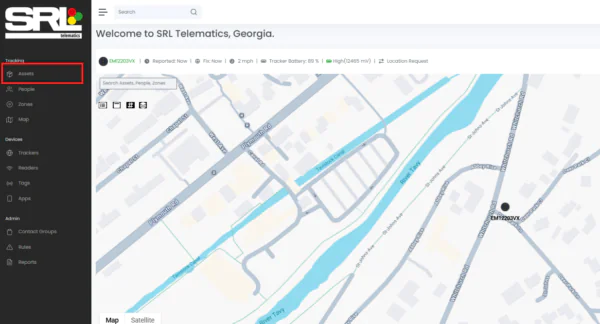
- Log in to SRL Telematics and select Assets from the left-hand navigation menu.
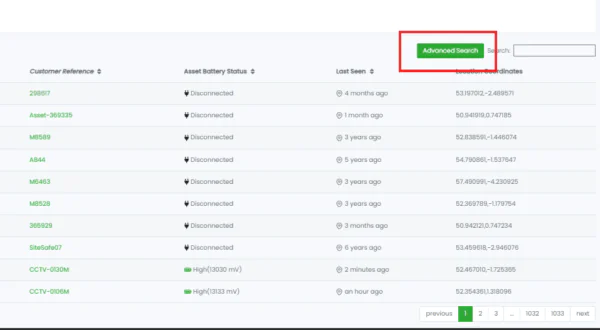
- Click Advanced Search.
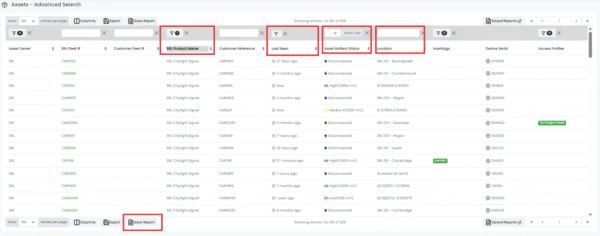
- Define your report criteria using the available filters, including product type, battery status, last seen, location and more.
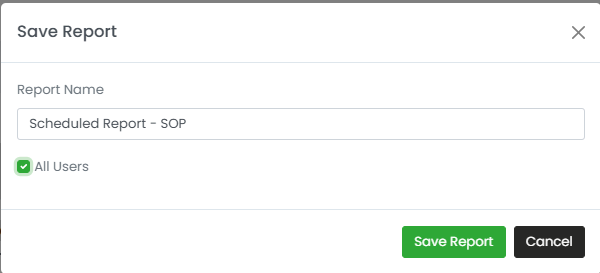
Once your required parameters have been applied, select Save Report at the bottom of the search table.
- In the following pop-up window, give the report an appropriate name and, if needed, select All Users box to make the report accessible to other users in your organisation.
Step 2: Schedule the Report
- Navigate to the Reports page from the left-hand navigation.
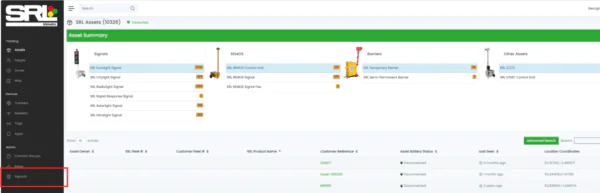
- Find the report you wish to automate and click Schedule.
In the pop-up window, choose how frequently you would like the report to be delivered. Options include daily, weekly, monthly, specific days of the week and custom delivery times.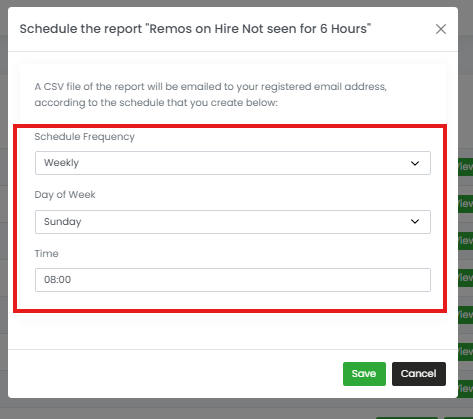
- Reporting schedules can be adjusted at any time.
Simply navigate to Reports, select the scheduled report and select Reschedule to amend the frequency or delivery settings.
For any support or guidance setting up scheduled reports, our team is on-hand to help in anyway.
Making Better Use of Your Asset Data
Scheduled Reports are another example of how SRL Telematics helps customers turn asset data into practical operational insight.
By automatically highlighting assets that require attention, Scheduled Reports reduce the need for manual monitoring while helping teams make better use of the information already available within the platform.
Whether identifying low battery assets, investigating communication issues or planning maintenance activities, Scheduled Reports ensure the right information reaches the right people at the right time – helping support a more proactive and efficient approach to asset management.
Want to know more?
To find out more about SRL Telematics and how it can support your operations, visit our Telematics page.
For help setting up Not Seen alerts or for further guidance on Telematics, email Gary Reid at [email protected]